Bands, channels and channel width
A Wi-Fi band is a range of radio frequencies, such as 2.4, 5 or 6 GHz. Each band is divided into channels that an access point can use to communicate with devices. Channel width describes how much of that radio spectrum a connection occupies. Wider channels can carry more data under favorable conditions, but they also leave fewer separate channels for nearby networks to use.
Interference is not always a matter of two networks choosing the exact same channel. Nearby networks can compete for airtime, and partially overlapping channels can disrupt one another. Walls, distance, neighboring access points and other radio devices also affect performance. The useful question is therefore not “Which channel is fastest?” but “Which settings work reliably in this location, with these devices?”
Choose a band for the job
The 2.4 GHz band is useful for devices farther from the access point and for older or low-power equipment that may not support other bands. Its limited room for separate channels makes it more likely to become crowded, especially in buildings with many networks. Where the local channel plan permits them, channels 1, 6 and 11 are common choices for avoiding overlap when using a 20 MHz channel width. Available channels vary by country, so follow the options offered by equipment configured for your location.
The 5 GHz band generally offers more channel choices and is often a good starting point for laptops, phones and other devices that need responsive connections. Its signal may have more difficulty passing through obstacles than 2.4 GHz, so coverage still needs checking. Some 5 GHz channels require radar-detection features known as DFS. An access point using one of these channels may have to change channels if it detects a protected signal; this can briefly interrupt service.
The 6 GHz band adds room for compatible Wi-Fi equipment, which can be helpful where older bands are busy. It does not upgrade devices that lack 6 GHz support, and its availability and permitted settings depend on location. Before making it the preferred connection for a room or team, check that the devices can use it and that the signal reaches the places where they work.
Start with a sensible channel width
A 20 MHz width is a practical starting point on 2.4 GHz. Increasing width there can consume much of the available space and create more overlap without improving real-world results. On 5 or 6 GHz, a wider channel may help a nearby device transfer large files, provided there is enough clear spectrum. In a crowded building, a narrower width can produce a steadier experience by allowing more networks to operate without competing across the same frequencies.
Treat advertised maximum speeds as a capability, not a promise. A device at the edge of coverage, a busy channel or a slow internet connection may see little benefit from wider Wi-Fi channels. If video calls stall or connections become inconsistent after widening a channel, try a narrower setting and compare performance in the same locations.
Use automatic selection as a starting point, then check it
Many access points can select a channel automatically. That is a reasonable first setting, particularly when neighboring networks change. To assess the result, test in the places people actually use Wi-Fi, including rooms behind walls and areas near other access points. Note signal strength, whether devices stay connected, and whether delays or slowdowns occur at busy times. A Wi-Fi analyzer can help show nearby networks and their channels, but it cannot reveal every source of interference.
If one channel is consistently troublesome, compare another allowed channel while keeping other settings unchanged. Change one thing at a time so the result is easier to interpret. In a small network with multiple access points, avoid putting nearby units on overlapping channels when possible. Reducing excessive transmit power may also help devices use the nearer access point, but set power only after checking that coverage remains adequate.
Fix coverage problems before chasing channel settings
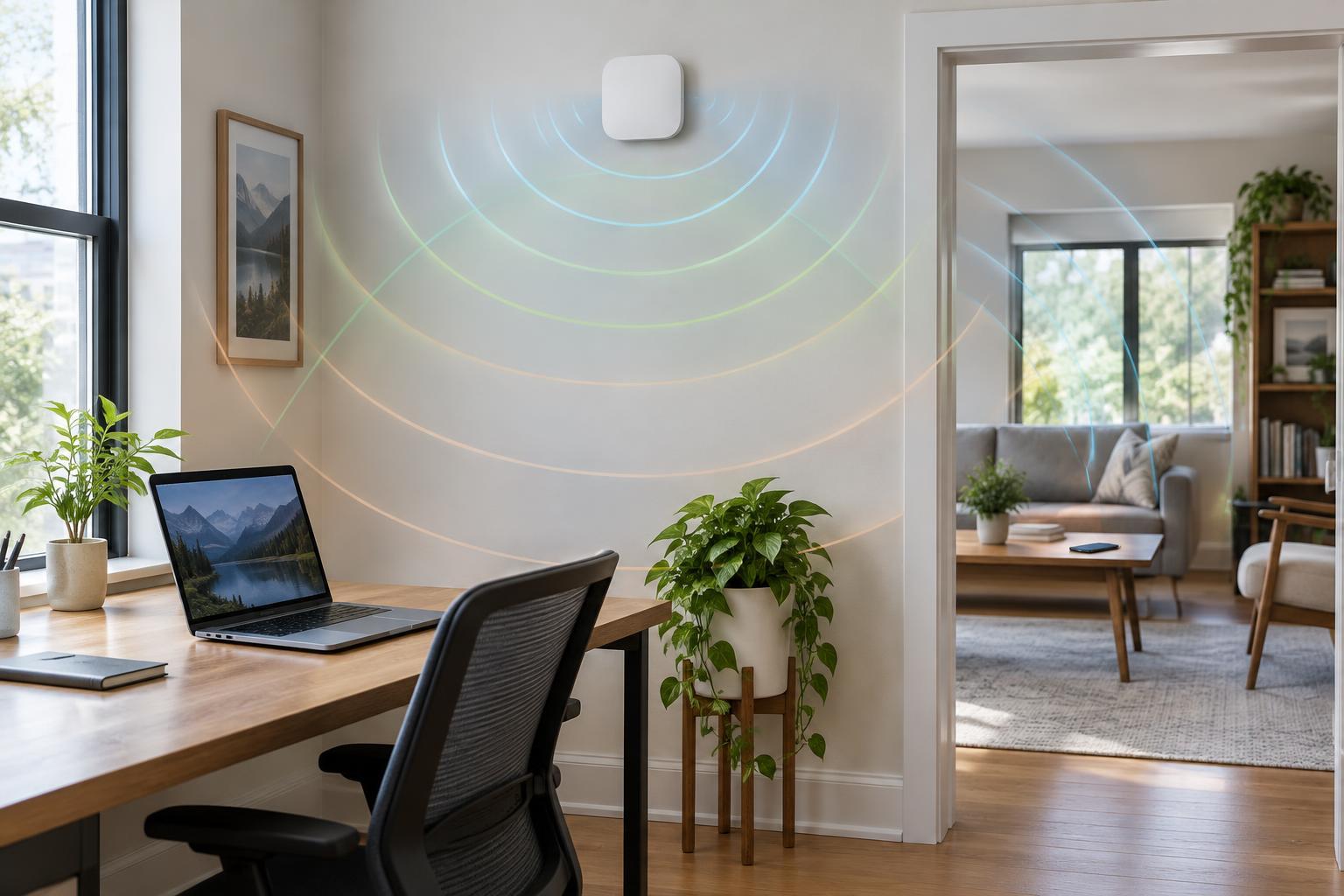
Channel tuning cannot compensate for an access point hidden behind dense materials or placed at one end of a large space. Put access points where they can serve the intended area, away from obvious obstructions when practical. If distant rooms remain unreliable, an additional access point with a suitable connection back to the network may help more than repeatedly switching channels.
After each change, check both a nearby device and one in a difficult location. Keep a brief record of the band, channel, width and outcome so you can reverse a change that makes things worse. The goal is not the largest speed-test number beside the router: it is a connection that remains usable where your devices need it.