Start with the audience, not the link
Cloud storage makes it easy to send a document, but “share” can mean several things. You might invite a named person, give a group access to a folder, or create a link that anyone holding it can open. Before choosing a setting, decide who actually needs the file, what they need to do with it and how long they need access.
For a small, known audience, an invitation to specific accounts usually gives you more control than a broadly accessible link. Check the account names before sending: an autocomplete suggestion may look familiar without being the intended recipient. If people only need to read a document, choose view access rather than edit access. Reserve editing for collaborators who must change the original.
An “anyone with the link” setting is convenient when recipients do not have accounts or when a file must reach a wider audience. Treat that link as something that can be forwarded, pasted into a chat or saved elsewhere. It is not a reliable way to limit access to the first people you send it to.
Check what the file and its folder reveal
A file’s sharing screen is only part of the picture. Files placed in a shared folder may inherit access from that folder, so changing the file’s own setting might not have the effect you expect. Look at the folder’s members and link settings before adding sensitive material. When a project involves several audiences, separate folders can be easier to manage than a single folder with exceptions on individual files.
Also consider what recipients can see inside the file. A document may contain comments, suggested edits, hidden sheets or text left over from an earlier draft. A presentation may have speaker notes. If recipients need only the finished result, make a clean copy and inspect it before sharing. A copy can reduce accidental disclosure, though you should still check its contents and permissions.
File and folder names matter too. A link to an otherwise ordinary document might reveal a client name, an internal project label or the purpose of a private meeting. Use names that help the intended audience identify the material without including details they do not need.
Choose permissions that match the task
View, comment and edit access serve different purposes. Viewing is a sensible starting point for reference material. Commenting lets recipients provide feedback without directly rewriting the document. Editing supports joint work but also allows accidental changes, so it is worth granting deliberately rather than by default.
Some services offer controls for downloading, copying, printing or resharing. These may reduce casual redistribution, but they cannot guarantee that information stays private: someone who can view material may still describe it, photograph a screen or capture it another way. Use those controls as an extra layer, not as a substitute for deciding whether a person should see the information at all.
If a service offers an access expiry, it may be useful for a short project. Otherwise, note when you intend to review access. Neither approach replaces a check when someone changes roles or leaves a team.
Test the recipient experience before sending
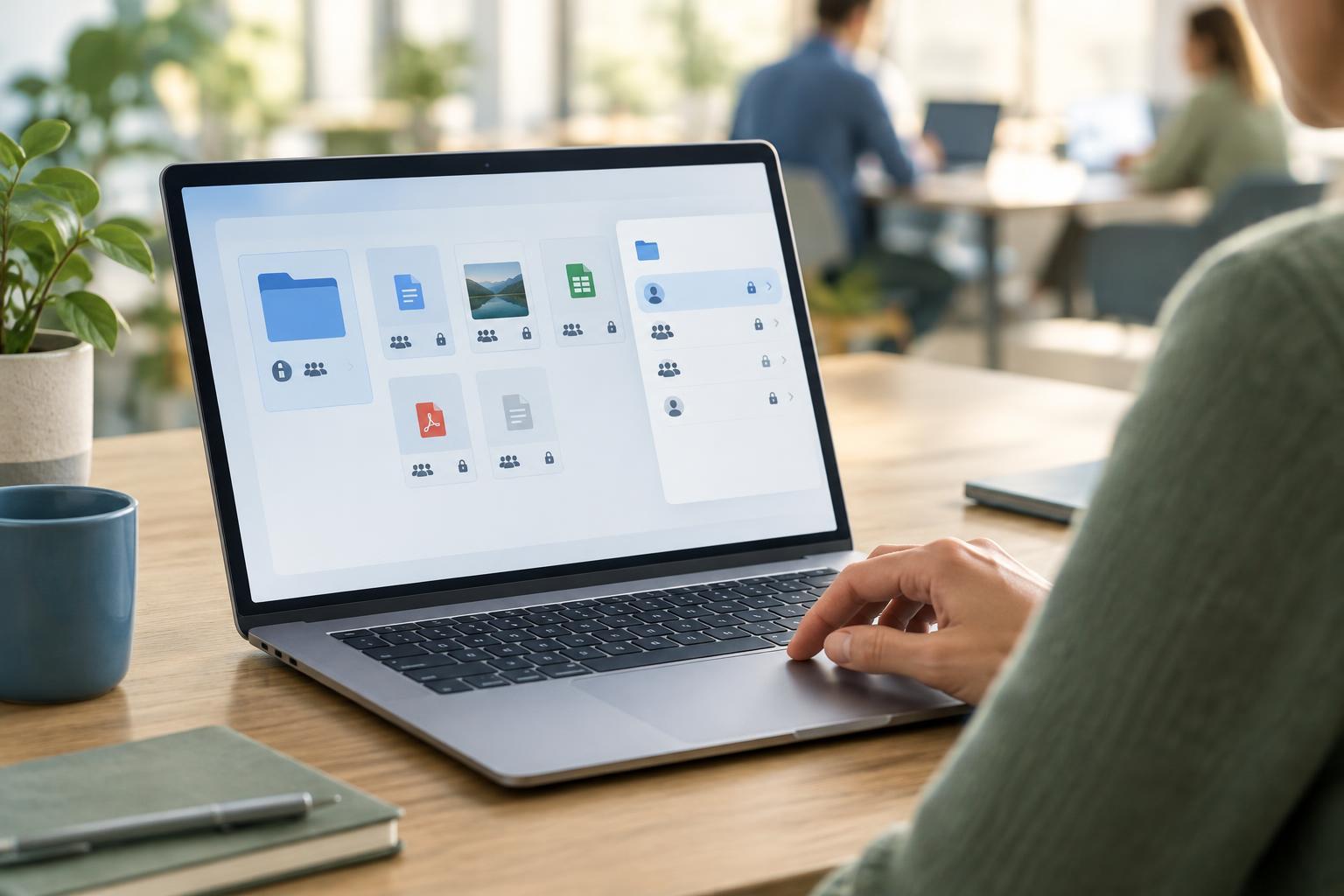
When the sharing screen permits it, review the list of people with access and the link’s stated audience. Confirm whether recipients must sign in and whether the permission is view, comment or edit. If you are sharing through a folder, check that the link does not grant access to neighboring files.
For an important share, consider testing with a separate account that has no existing access. This can reveal whether the link asks for permission, opens more broadly than expected or displays the wrong version. Be careful not to put private material into a test account that should not receive it; a harmless sample file can help you understand unfamiliar settings first.
Remove access when the work is finished
Sharing is not complete when the link is sent. Over time, a folder can collect former collaborators, unused links and files that no longer belong together. Build a brief access review into the end of a project: inspect folder members, remove people who no longer need access and disable links that have served their purpose.
Removing cloud access does not recall copies someone has already downloaded or made. That limit is a reason to share the smallest useful amount of information from the start. If a recipient needs one document, avoid granting access to an entire folder. If they need only a summary, consider preparing one rather than sharing the underlying working files.
A practical habit is to pause before every new share and ask three questions: Who can open this? What else can they see? When will I review their access? Those checks take little time and make cloud collaboration easier to manage.