Start with a map of the office
Before buying equipment, list what the network must support. Count laptops, desktop computers, printers, phones, cameras and other devices that need a connection. Note which devices are used by visitors and which must reach shared resources, such as a printer or file server. Then mark the desks, meeting rooms and likely equipment location on a floor plan. A hand-drawn plan is enough to reveal where cables and wireless coverage will matter.
Think about use as well as device count. Video meetings, cloud applications and large file transfers may compete for the same connection. Ask where people work most often and whether they move between rooms. Plan some spare switch ports and cable locations if the office may change. You do not need to predict every future device, but leaving modest room to grow is easier than rebuilding a full network later.
Give each network device a clear job
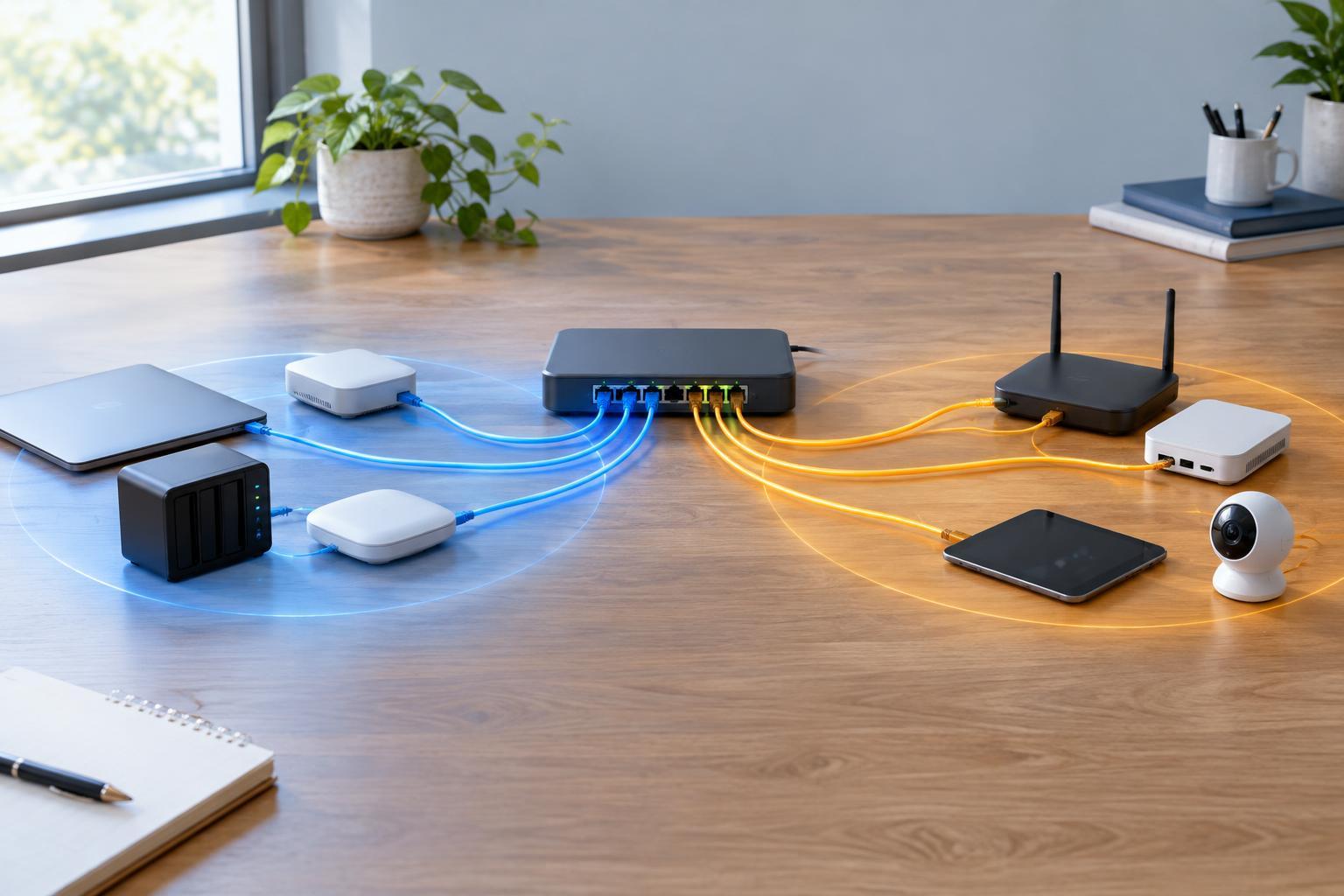
A typical layout is straightforward: the internet connection reaches a router or firewall, which connects to a switch. The switch connects wired equipment and Wi-Fi access points. The router directs traffic between the office and the internet and commonly provides local IP addresses. A firewall, whether built into the router or separate, applies rules to incoming and outgoing traffic. Check which features a device actually provides rather than assuming every product labeled “router” works the same way.
Choose a switch with enough ports for the planned cables plus a few extras. If access points, network phones or cameras will receive power through their Ethernet cables, look for a Power over Ethernet switch. Check its total power budget as well as the number of powered ports; both need to suit the connected devices. For a very small office, a single suitable switch may be sufficient. A larger or divided space may need additional switches, but keeping the layout simple makes faults easier to trace.
Plan cables around fixed equipment
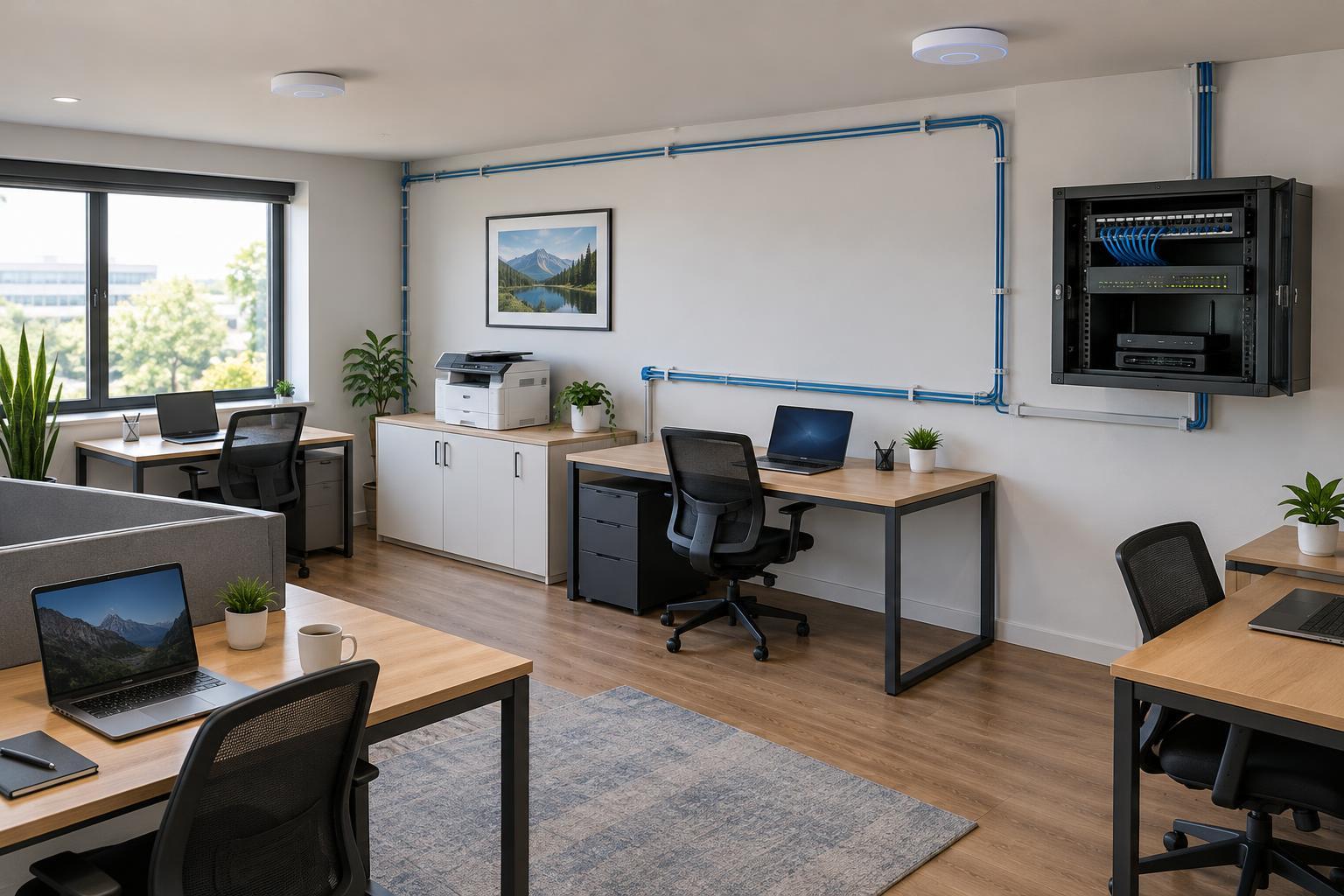
Ethernet is a useful default for stationary devices and for access points. Wired links avoid some of the interference and coverage problems that affect Wi-Fi, while freeing wireless capacity for mobile devices. Mark a cable run from a central switch location to each fixed desk or shared device that needs one. Include runs to the proposed access point positions, which may be on a ceiling or high on a wall rather than beside a desk.
Keep the equipment location accessible, ventilated and protected from casual interference. Label both ends of each cable with the same identifier and record the destination on your floor plan. Where appropriate, terminate permanent runs at wall outlets and a patch panel; short patch leads can then connect outlets and equipment. Follow the cable and connector specifications required by your chosen equipment. Building rules and installation requirements can vary, so use a qualified installer where the work calls for one. Test each completed run before relying on it.
Place access points for coverage, not convenience
An access point provides Wi-Fi; it is not simply a faster replacement for good placement. Start with the rooms where people work, then consider walls, doors, shelving and other obstacles between users and an access point. Positioning one in an open, central area may work better than hiding it in a cabinet. A second access point can help cover a separated area, but adding devices without a plan can create unnecessary overlap and interference.
If possible, test coverage with an access point in a proposed location before fixing it permanently. Walk through the office with a typical work device and check both connection quality and the applications people actually use. Repeat the check in meeting rooms and at the edges of the workspace. Use the access points’ management settings to coordinate network names and channels where supported. Remember that a strong Wi-Fi signal does not fix a slow internet connection or an overloaded upstream device.
Separate access and document the result
Set a strong administrator password on each network device, install available security updates and keep a record of who can change settings. Use modern Wi-Fi security supported by your devices, and provide a separate guest network if visitors need internet access. Where the equipment supports it, network segmentation can keep guest devices apart from office systems. Test that the separation works: a guest should not be able to reach a shared printer or file server unless that access is intentional.
Finish with a simple network record: the connection path, device models, cable labels, access point locations, network names and a secure location for credentials. Note any decisions that might otherwise be forgotten, such as a reserved switch port or a room with weak coverage. This small amount of documentation helps the next person diagnose a problem, replace a device or expand the office without having to rediscover how everything connects.