Why password reuse puts multiple accounts at risk
It is hard to remember a different strong password for every account. Reusing one seems convenient, but it connects accounts that would otherwise be separate. If a password is exposed through one service, someone may try the same email address and password on other sites. A breach of a little-used account can then put an important account at risk.
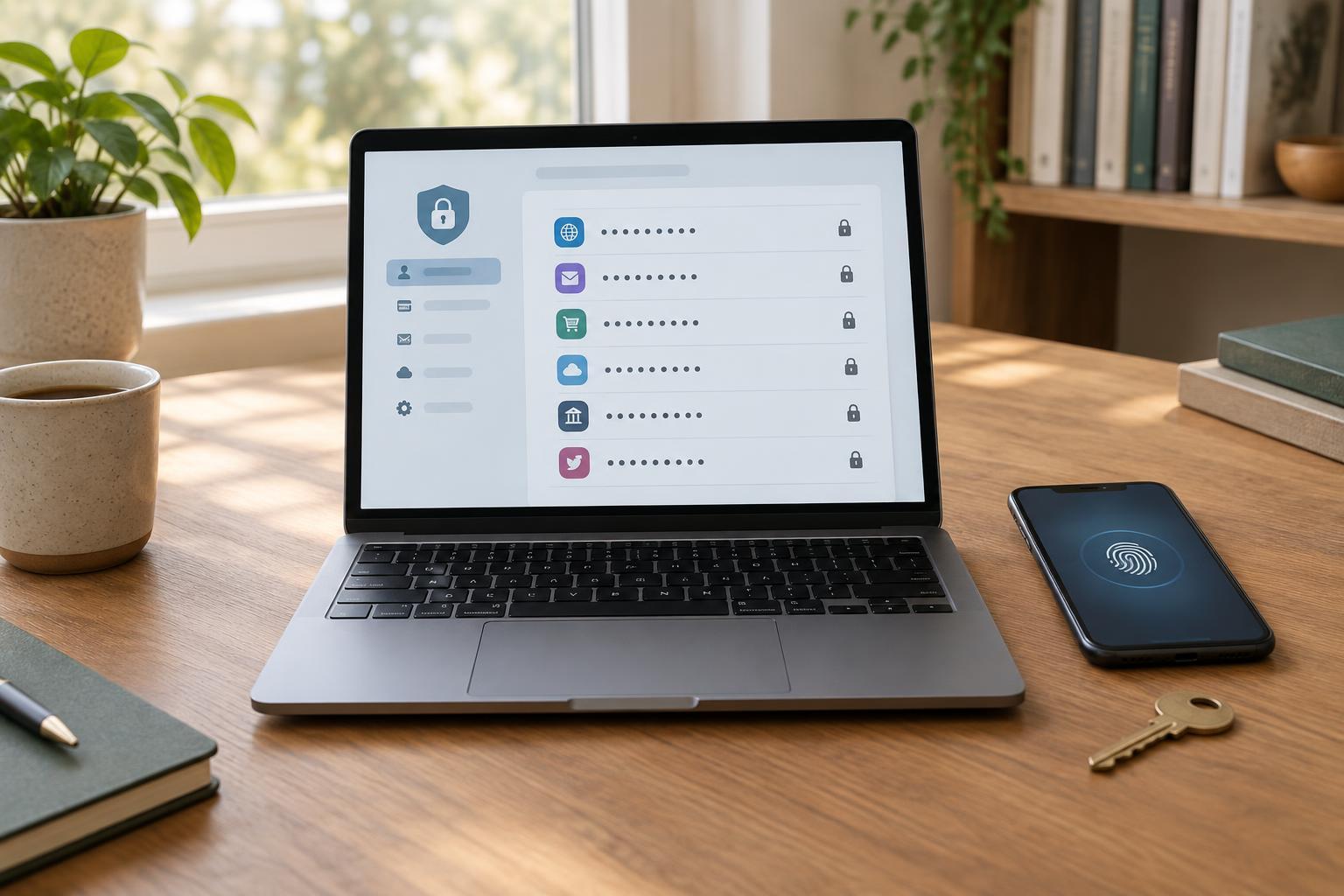
A password manager helps break that connection. It stores account credentials in a vault and can generate a long, random password for each site. You remember one master password rather than every account password. The goal is not to make every login effortless; it is to make unique passwords manageable enough that you actually use them.
What a password manager does
A typical password manager has an app or browser extension for saving and filling credentials. When you create an account, it can suggest a random password, store it with the site’s address, and fill it when you return. Many managers can also sync the vault across devices, so a password created on a laptop is available on a phone.
Managers commonly encrypt vault contents, but their designs and settings differ. Encryption helps protect stored data; it does not make the vault immune to every threat. Someone who gains access to an unlocked device or an active vault session may be able to use saved credentials. Keep devices updated and protected with a screen lock, and lock the vault when you step away from a shared computer.
Autofill can also provide a useful moment to pause. If the manager does not recognize a login page, check the address before entering a password. A legitimate site might have changed its login page, but an unfamiliar address could also be a phishing attempt. Do not treat autofill as a guarantee that a page is safe.
Set up the vault and its recovery options
Choose a master password that is unique to the manager and long enough to be difficult to guess. A memorable passphrase made from several unrelated words is one practical approach. Do not reuse a password from another account, and avoid storing the master password inside the vault as your only copy. Before relying on the manager, learn what happens if you forget it: depending on the product, the provider may be unable to restore an encrypted vault.
Enable multifactor authentication for the manager if it is offered, and save any recovery codes according to the provider’s instructions. Store recovery information somewhere you can reach if your phone is lost or your vault is locked, while keeping it away from people who should not have access. If you use the manager on multiple devices, test that you can sign in and retrieve an entry on a second device before you need it urgently.
It is reasonable to compare managers on supported devices, export options, recovery methods, and how they explain their security model. A built-in browser or operating-system manager may be sufficient for some people; a separate service may better suit others who use several platforms. Whichever you choose, review its sharing and sync settings rather than assuming the defaults match your needs.
Replace reused passwords in a practical order
You do not need to change every password in one sitting. Start with the email account used for password resets, then the password manager itself and other accounts whose loss would cause the most disruption. For each account, sign in through a trusted route, generate a new password in the manager, save it, and confirm you can sign in again before moving on.
Next, work through accounts that share a password. A manager’s duplicate-password report, if available, can help you find them. When a site offers multifactor authentication, consider turning it on as an additional barrier. It does not replace a unique password: the two measures protect against different problems. Remove obsolete saved entries only after checking that you no longer need them.
Keep the habit simple
Let the manager generate passwords for new accounts instead of inventing variations of one familiar password. Review prompts before saving changes so an accidental entry does not overwrite a working credential. If you need to share access, use a manager’s designated sharing feature when appropriate rather than sending a password in a message. For accounts that support passkeys, check how your manager stores and recovers them; they can reduce reliance on passwords, but access to the device or vault still matters.
A password manager is most effective as part of a routine: unique credentials, protected devices, recovery information you can find, and a brief check of the site before signing in. It cannot remove every account risk, but it can eliminate the need to reuse passwords simply because there are too many to remember.