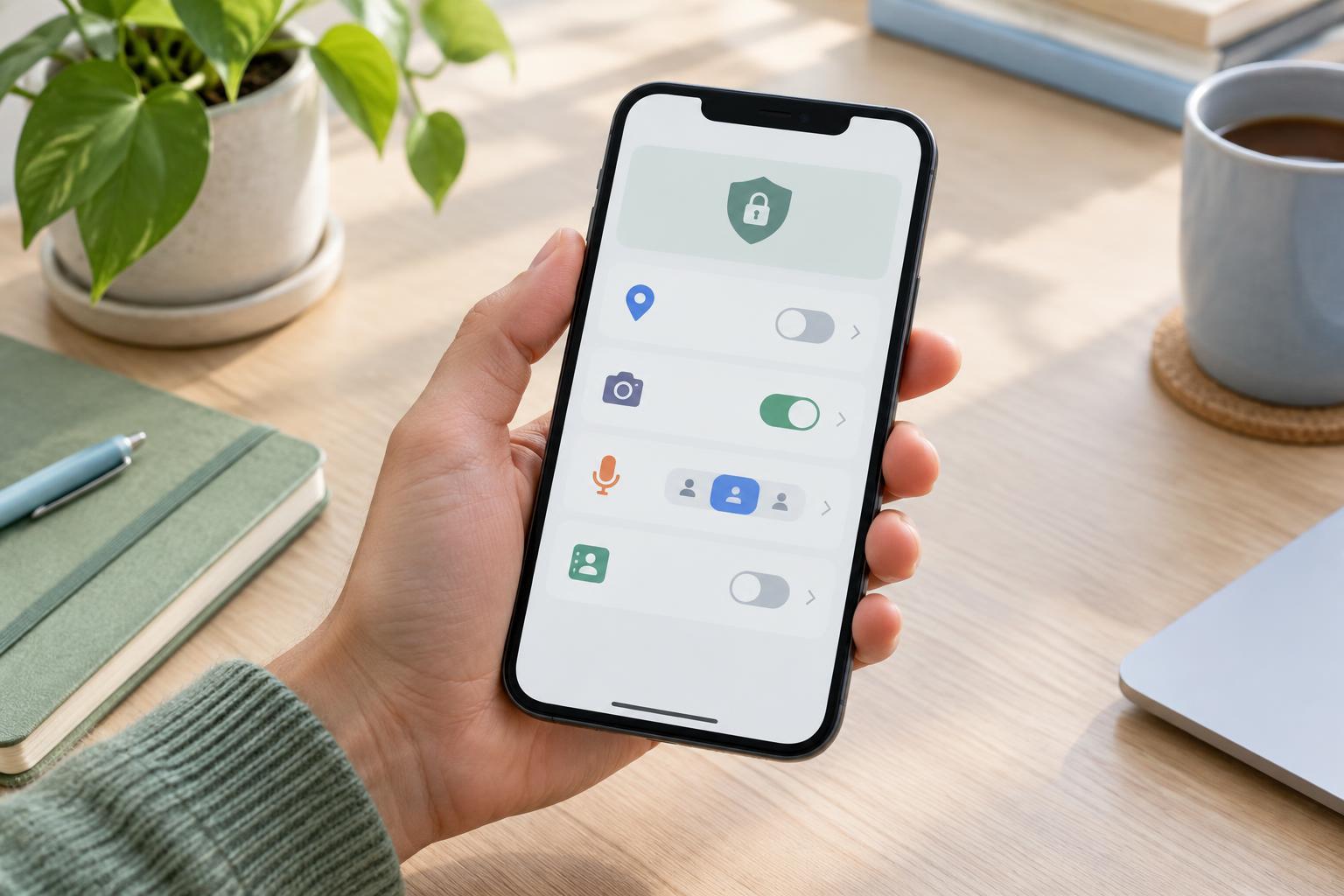
What permissions do—and do not—control
A mobile app may ask for access to your location, camera, microphone, photos, contacts or other device features. A permission is the operating system’s way of letting you allow or deny a particular kind of access. Some requests have an obvious purpose: a navigation app needs location to show where you are. Others deserve a closer look, especially when an app asks for access that seems unrelated to the feature you want to use.
Permissions are only one part of mobile privacy. Denying access to contacts does not prevent an app from using information you type into it, and turning off location permission does not necessarily stop every form of location inference. An app may still learn something from an address you enter or from its network connection. Permission settings are best treated as a way to reduce unnecessary access, not as a guarantee that an app collects no data.
Start with a simple permission audit
Open your phone’s Settings app and look for Privacy, Security, Permissions or Apps. The exact names and paths vary by operating system and version. You can usually review access in two useful ways: by app, to see everything one app can use, or by permission type, to see every app that can use your camera, microphone, location and so on.
Start with apps you rarely open and permissions that expose sensitive information. Ask what feature requires the access, whether you use that feature and whether the app needs access all the time. A weather app may need a location to show a local forecast, but entering a city manually could be enough for you. A photo editor may need one image you select rather than your entire photo library. You do not need to decide every permission at once; a short review of a few apps is easier to check afterward.
If you no longer recognize or use an app, consider whether you need it installed at all. Removing an unused app can simplify your audit, though uninstalling it may not erase information you previously shared with its provider.
Choose the narrowest access that works
Where your phone offers choices, prefer the one that matches the task. For location, that might mean allowing access only while using the app rather than at all times. Some devices also offer approximate instead of precise location. For photos, you may be able to select particular images rather than grant access to the whole library. For a one-off task, a one-time permission may be available. Options differ across phones and apps, so check the wording on your own device.
It can help to separate permissions needed to use an app from those needed only for an optional feature. A messaging app, for example, may work for text conversations without microphone access, even if voice messages do not. If you deny a request and a feature stops working, you can decide whether that feature is worth enabling access for. Permission choices are generally reversible in Settings.
Review broader access especially carefully. Depending on the device, settings such as accessibility access, device administration or the ability to display over other apps may give an app capabilities beyond an ordinary camera or photo request. Grant them only when you understand the feature that needs them and trust the app to use them for that purpose.
Check the result, not just the setting
After changing a permission, open the app and try the feature you actually use. If it works, the narrower setting may be sufficient. If it fails, look for an alternative such as entering information manually, selecting a file when prompted or granting access only when you use that feature. Avoid switching every permission back on just to clear an error message; change the specific setting the feature needs.
Also review notifications separately. Notification controls determine which alerts appear and may let you hide their contents on the lock screen, but they are not a substitute for reviewing data access. Likewise, restricting background activity or mobile data can affect when an app connects, yet those settings serve a different purpose from denying permission to use the microphone or contacts.
Make review an ongoing habit
Revisit permissions when you install an app, begin using a new feature or notice a request you did not expect. You can also do a periodic sweep of apps that have always-on location, full photo access or permissions you no longer remember granting. System menus may show recent permission use, which can help you decide what to inspect, although the details available vary by device.
The aim is not to deny every request. It is to make access proportionate: give an app what it needs for a task, for as long as it needs it, and revisit that decision when your use changes. Combined with removing unused apps and paying attention to what you share inside the apps you keep, permission reviews are a practical way to reduce unnecessary exposure without making your phone difficult to use.