Why devices need network settings
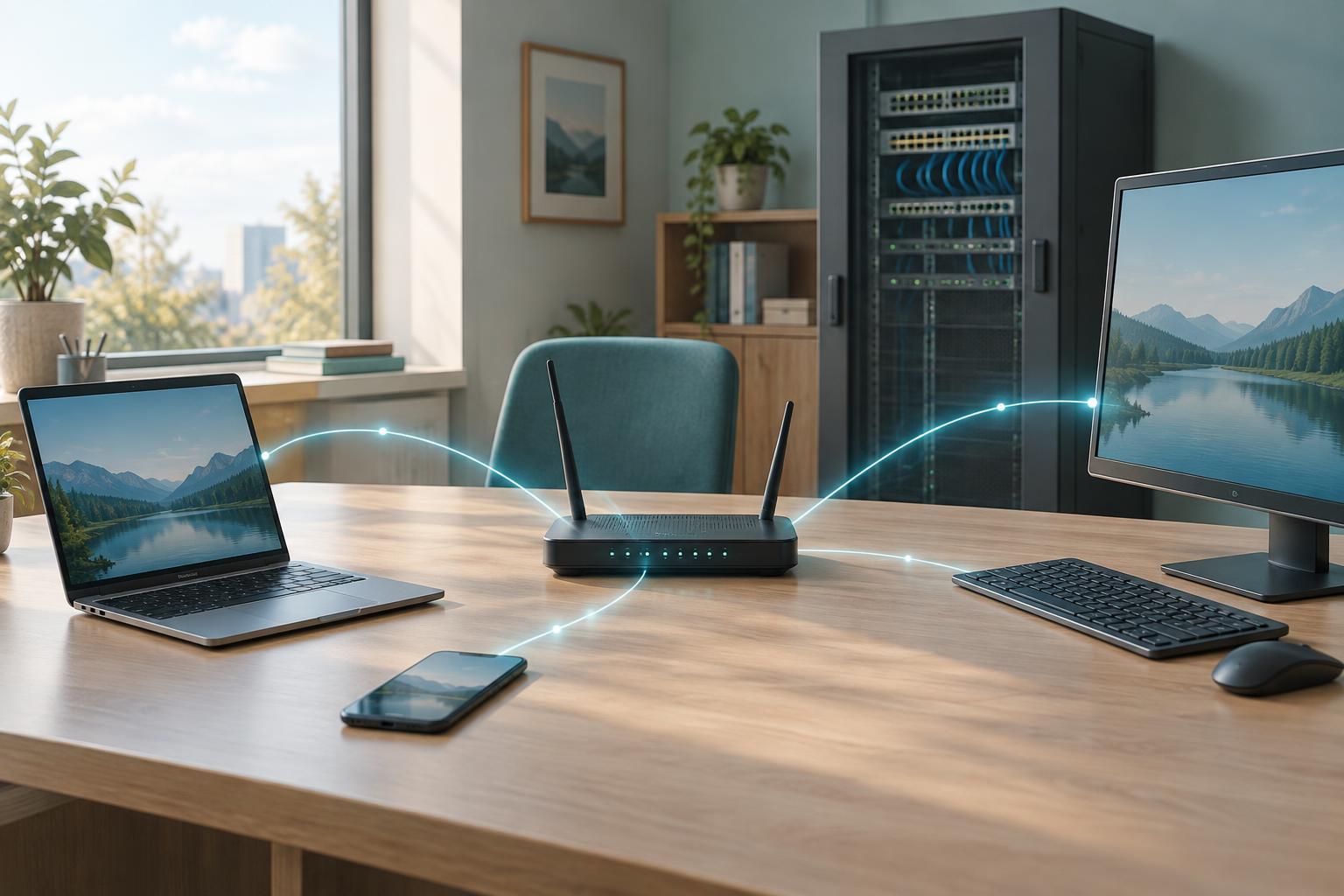
A laptop can join a Wi-Fi network without knowing which IP address it should use. Before it can communicate with other devices, though, it needs an address suited to that network. It also needs to know which addresses are local, where to send traffic headed elsewhere, and which service can translate names such as website domains into IP addresses.
Dynamic Host Configuration Protocol, or DHCP, provides a way to supply these settings automatically. On a typical home network, the router runs a DHCP server. On a larger network, a separate server may perform that job. A phone, computer, or printer requesting settings is called a DHCP client. Automatic configuration saves people from entering settings on every device and helps a network administrator manage addresses in one place.
What a DHCP server provides
For IPv4 networks, a DHCP server commonly gives a client an IP address, a subnet mask, a default gateway, and one or more DNS server addresses. The IP address identifies the device on the local network. The subnet mask helps it decide whether a destination is local. The default gateway is usually a router that forwards traffic to other networks. DNS servers help the device look up IP addresses for domain names.
The server draws addresses from a configured range, often called a pool. For example, a small network might reserve some addresses for infrastructure and use a different range for client devices. DHCP can also supply other options, but which ones a device uses depends on the client and network configuration. Receiving an IP address alone does not guarantee that websites will work: an incorrect gateway or DNS setting can still disrupt access.
How a device gets a lease
On an IPv4 network, the initial exchange is often described by four steps: discover, offer, request, and acknowledge. A client that does not yet have an address sends a discovery message looking for a DHCP server. A server responds with an offer of settings. The client requests the offered address, and the server acknowledges the lease. These messages allow the server to keep track of which addresses it has offered and assigned.
A lease is permission to use an address for a limited period, not permanent ownership of it. Clients generally try to renew their leases before they expire. If a device leaves the network and does not return, the server can eventually make its address available again. A server may also be configured with a reservation that repeatedly offers a particular address to a particular device. That can be useful for a printer or another device that is easier to reach at a predictable address.
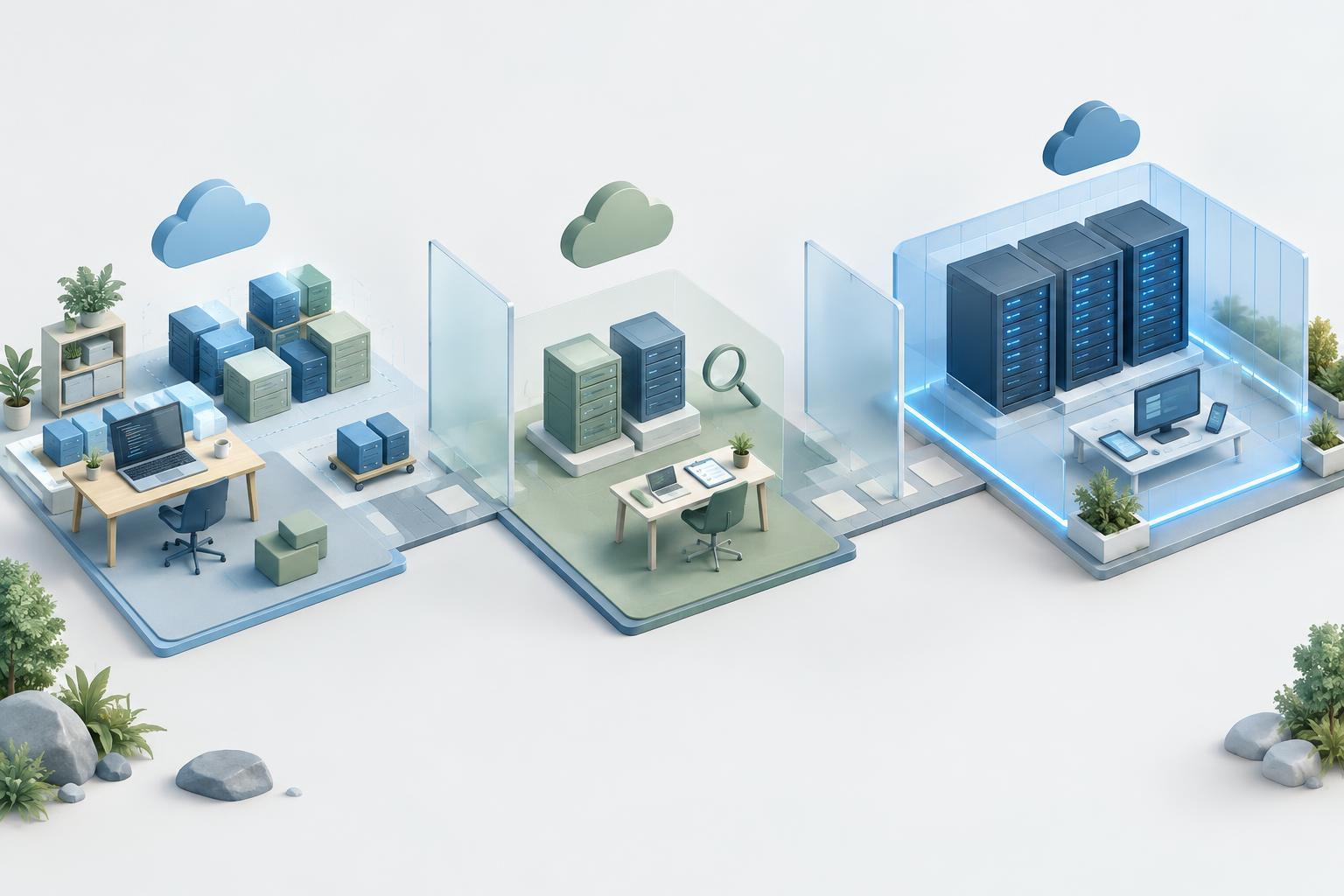
Initial DHCP traffic must be able to reach a server even though the client has no usable address yet. On a single local network, a server can receive the client’s broadcast messages directly. If the server is on another network, a DHCP relay can pass the request across a router. Without a server or relay that the client can reach, automatic configuration may fail.
DHCP and IPv6 are not identical
The discover-offer-request-acknowledge sequence above describes DHCP for IPv4. IPv6 networks can use DHCPv6, but they can also use router advertisements to let devices configure their own IPv6 addresses. A network may use DHCPv6 to provide some settings while router advertisements provide others. The details depend on how the network and its clients are configured.
This distinction matters when troubleshooting a device that has working IPv6 connectivity but no working IPv4 address, or the reverse. Seeing an address in one protocol does not prove that configuration for the other protocol succeeded. Check the address, gateway or routing information, and DNS settings relevant to the connection you are testing.
A practical troubleshooting checklist
If a device cannot connect, first check whether it actually joined the intended wired or wireless network. Then inspect its assigned IP address, subnet mask, gateway, DNS servers, and lease status using the device’s network settings or command-line tools. Compare those values with a device that works on the same network. An address outside the expected range may suggest that the device did not receive a lease from the intended server.
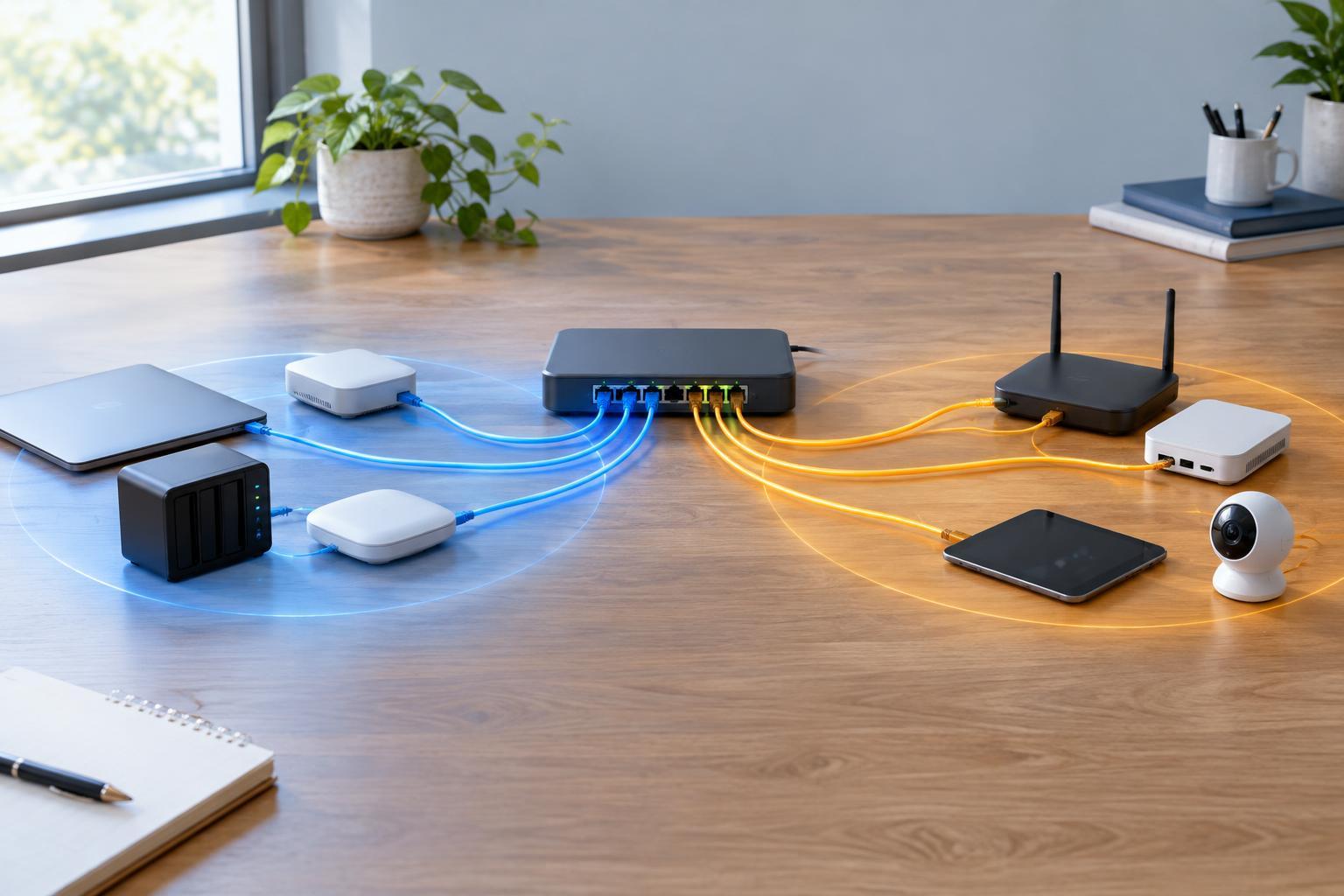
Next, check whether the DHCP server is running and has available addresses in its pool. On a network with multiple routers or access points, an unintended DHCP server can hand out conflicting settings. If the server is on a different network, check the relay configuration and the path to it. Renewing the client’s lease can help test a change, but repeated renewals will not fix an unreachable server or a wrongly configured pool.
DHCP solves the task of distributing network settings; it does not, by itself, verify that the internet connection works. Testing local connectivity, then the gateway, then access beyond the network can help narrow the fault. Keeping those steps separate makes DHCP problems easier to distinguish from DNS failures and other connection issues.