Start with the image’s job
An image’s best format and dimensions depend on what it shows and where it appears. A full-width photograph, a small product thumbnail, and a simple icon have different needs. Before exporting anything, note the image’s largest displayed width, its likely width on a narrow screen, and whether visitors need to inspect fine detail. The goal is not to make every file as small as possible. It is to avoid sending detail that cannot be seen while keeping the image clear at its intended size.
Think of the process as two separate decisions. The format determines how the image is represented and compressed. The dimensions determine how many pixels are stored. A well-compressed image can still be unnecessarily heavy if it is far wider than the space it occupies. Conversely, an appropriately sized file may look poor if compression removes important detail.
Match the format to the content
For photographs and other complex images, compare JPEG, WebP, and AVIF exports at the quality your page requires. JPEG remains a useful compatibility option. WebP and AVIF can often produce smaller files at similar apparent quality, but results vary with the source image and export settings. Check the actual output rather than assuming one format always wins, especially around fine textures, text embedded in an image, or sharp edges.
PNG is useful when lossless detail or transparency matters, though photographic PNGs can be large. For simple logos and icons made of shapes and lines, SVG often stays sharp at different sizes because it describes the artwork as vectors. Use SVG only when you trust the file or have an appropriate process for handling it; it can contain more than drawing instructions. If an image moves, first ask whether motion is necessary. Animated assets can be costly, and a still frame may communicate the same idea more efficiently.
Modern formats can be offered alongside a fallback so browsers can choose a version they support. That is a format choice, not a sizing strategy: a browser might support AVIF but still receive an oversized AVIF file. Treat format and dimensions as complementary parts of the same workflow.
Create sizes for the space the image fills
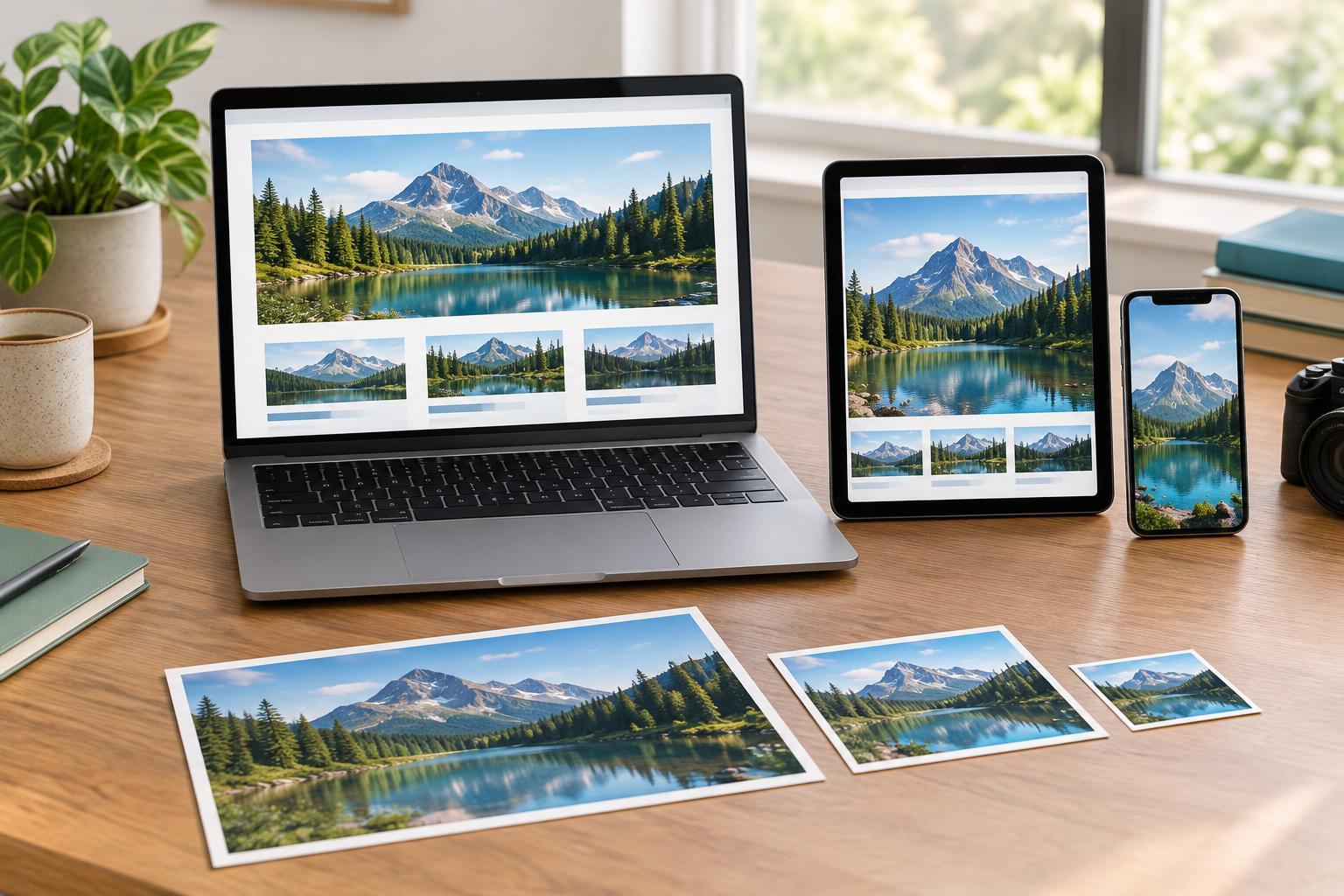
Start with the image’s display width in the page layout, not the width of the original upload. A card that is about 300 CSS pixels wide does not usually need the same source file as a large hero image. Screens with higher pixel density may benefit from more image pixels than the CSS width alone suggests, so it is useful to prepare several width variants. For a card, those might be 320, 640, and 960 pixels wide; the right set depends on the layout and source material.
Do not generate every possible width. A small number of sensibly spaced variants is easier to maintain and usually gives the browser a reasonable choice. Keep the same crop and subject across variants that are meant to be interchangeable. If a narrow layout needs a different crop to keep the subject visible, treat that as an art-direction decision rather than simply a smaller export.
Avoid enlarging a source beyond the detail it contains. Also consider whether an image has a meaningful maximum display size. If it never grows beyond a fixed content column, preparing an extremely wide variant adds work without helping that layout.
Tell the browser about the layout
Responsive image selection works best when the browser knows both the available files and the space the image is expected to occupy. Width descriptors identify the pixel width of each file, while a sizes description estimates the image’s rendered width under different layout conditions. For example, an image might fill nearly the viewport on a phone but occupy only one-third of a wider grid. That layout information helps the browser choose among the available widths, taking screen density into account.
A common mistake is to provide several variants while describing every image as if it filled the entire viewport. The browser may then choose a larger file than the layout needs. Compare the sizes description with the page’s actual CSS at narrow, medium, and wide widths. The browser makes the final selection, so its choice may not be the exact width you expected. If different crops or formats are needed, picture-based selection can express those alternatives while retaining a suitable fallback.
Check the result on a real page
Inspect the downloaded image files at several viewport widths, including a narrow screen and a dense display. Check whether the chosen file looks clear at its rendered size and whether a substantially larger file was downloaded than necessary. Compare exports visually before reducing quality further; artifacts around faces, lettering, or high-contrast boundaries can be more noticeable than a modest file-size saving.
Reserve layout space by giving images dimensions or an appropriate aspect ratio so nearby content does not jump when they load. Images far down the page are often good candidates for lazy loading, but an image needed immediately near the top should not be delayed without a reason. Finally, revisit the setup when the layout changes. Responsive image rules describe the design as it exists; if a card becomes a full-width feature, its old size choices may no longer fit.